How to View/Cancel Submitted Requests
This job assists all users on how to view and cancel requests they have submitted for review.
NOTE: If you are accessing FedHub on a mobile device, some screens may vary in appearance.
-
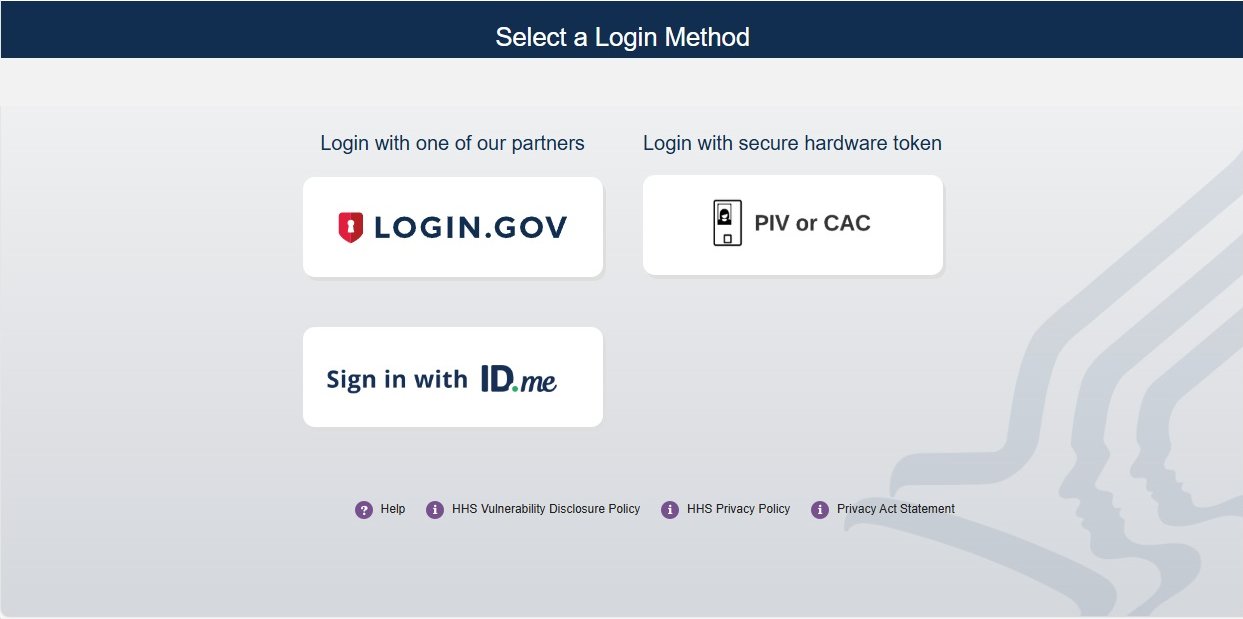
Log into FedHub (https://fedhub.hhs.gov) using one of the methods presented on the login page. For quick and easy access to your applications, add this page to your browser favorites or create a desktop shortcut.
-
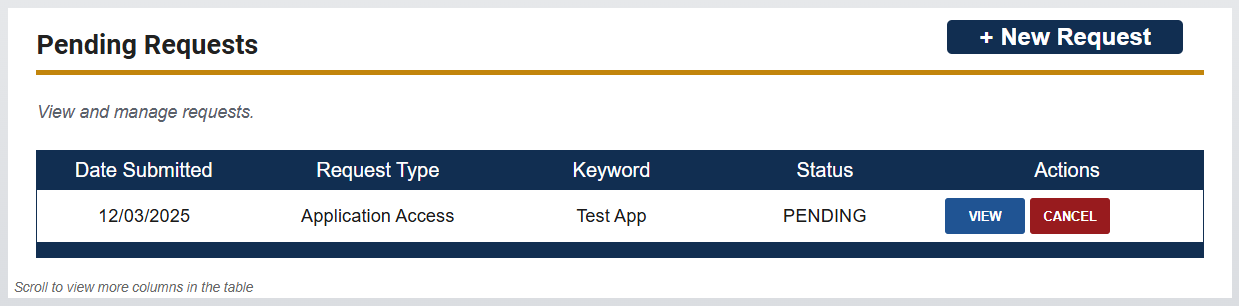
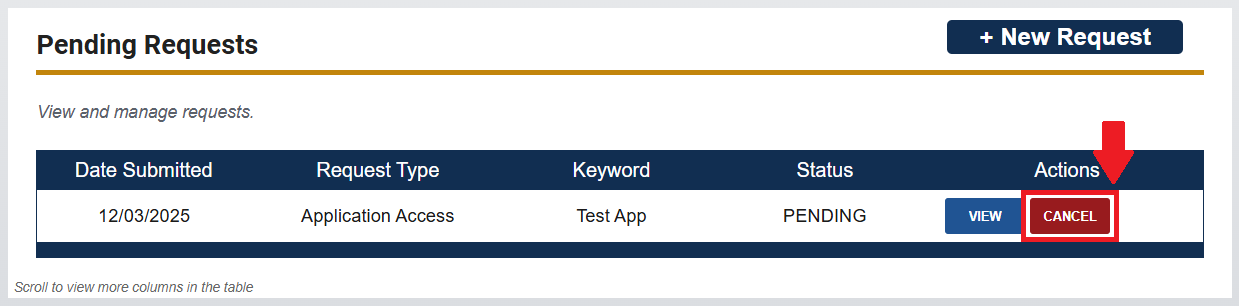
On your dashboard, a "Pending Requests" section will be displayed. All information regarding requests that you have submitted will be displayed on this page.
-
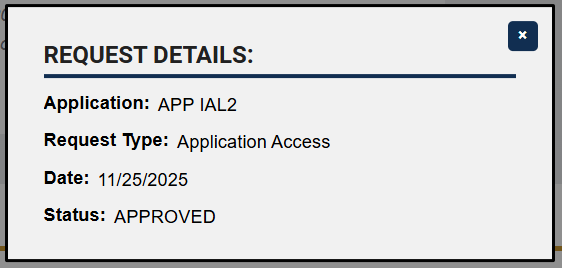
To see additional information for a request, click the "View" button in the Actions column for the desired request in the "My Requests" table.
NOTE: Depending on the type of request (i.e., Organization Registration, Admin Affiliation, Member Affiliation, Application Access), the information displayed might be slightly different.
-
To cancel a request that has been submitted, click the "Cancel" button in the Actions column for the desired request.
NOTE: Only requests with a status of PENDING have the option to be cancelled.
-
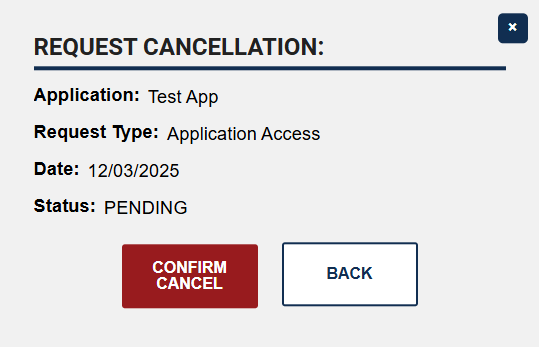
A pop-up window is displayed with the request’s information. To confirm cancellation of request, click the "Confirm Cancel" button.
-
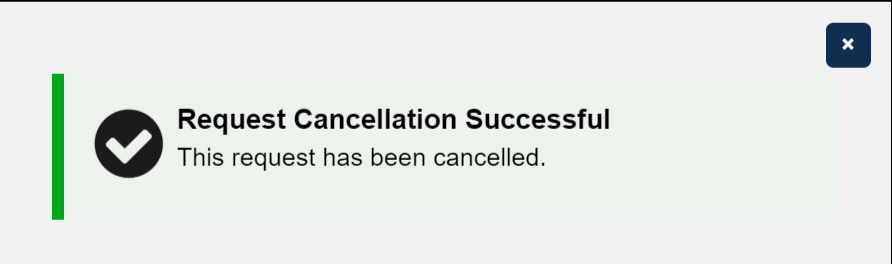
A confirmation pop-up is displayed to affirm that the request has been successfully cancelled. The request will still appear in the "My Requests" table but will now have a status of CANCELLED.