How to Link a FIDO Security Key to an Existing FedHub Account
This job aid assists users on how to link their FIPS 140-2 compliant FIDO security key to their FedHub account on desktop.
To log into FedHub with a FIDO security key from desktop (refer to the “How to Log into FedHub with FIDO Security Key” job aid), the key must be previously linked to their FedHub account.
NOTE: FIDO security key login is supported on both desktop and mobile device. For FIDO security key log in from a mobile device, refer to "How to Log into FedHub with Fido Security Key".
-
Log into FedHub (https://fedhub.hhs.gov) using one of the non-FIDO security key methods presented on the login page. For quick and easy access to your applications, add this page to your browser favorites and create a desktop shortcut.

-
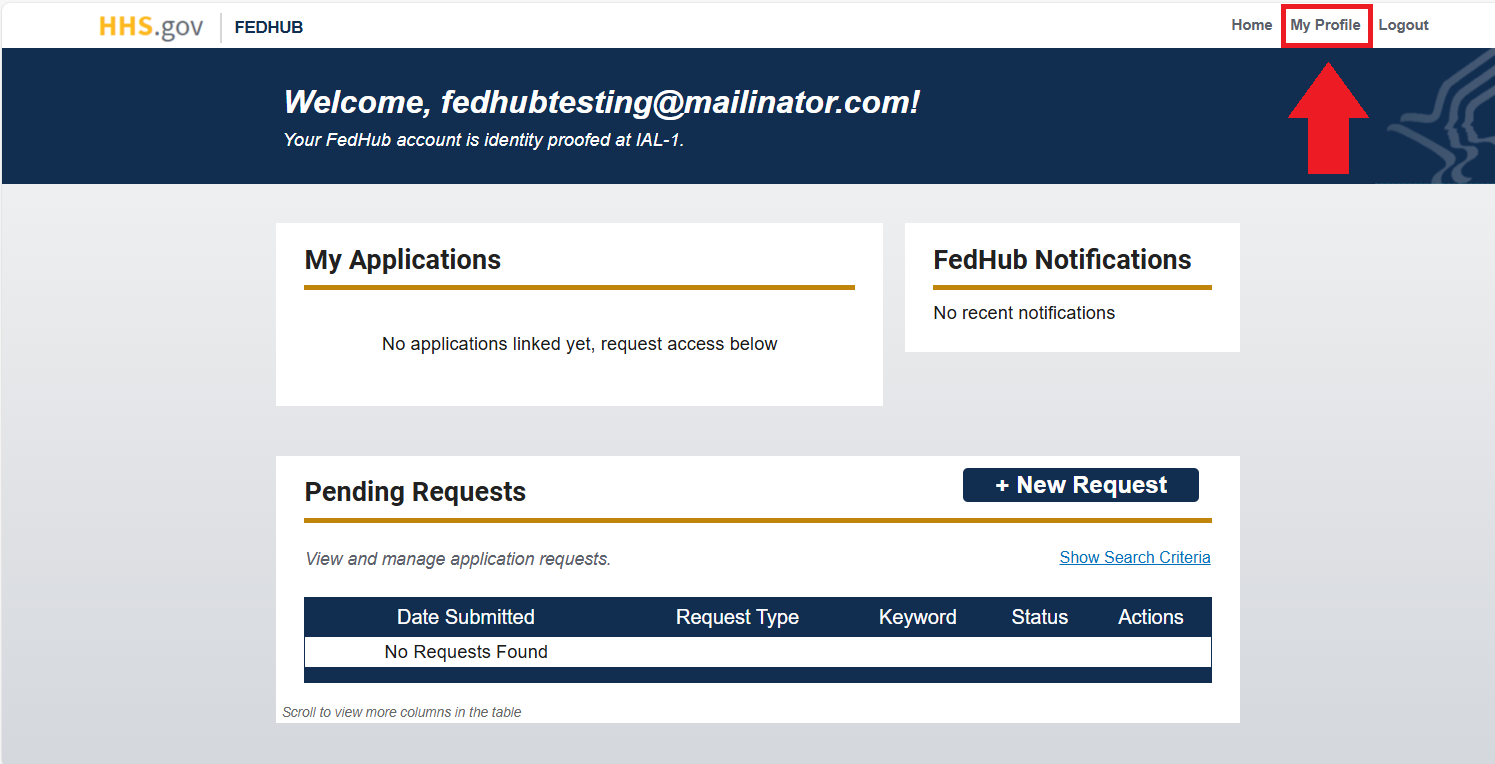
From your dashboard, select the "My Profile" link (located in the top-right corner).
-
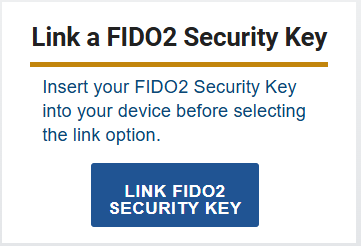
Insert or present your FIPS 140-2 compliant FIDO security key into your device. Then, click the "Link FIDO2 Security Key" button in the section (right side) labeled "Link a FIDO2 Security Key".
-
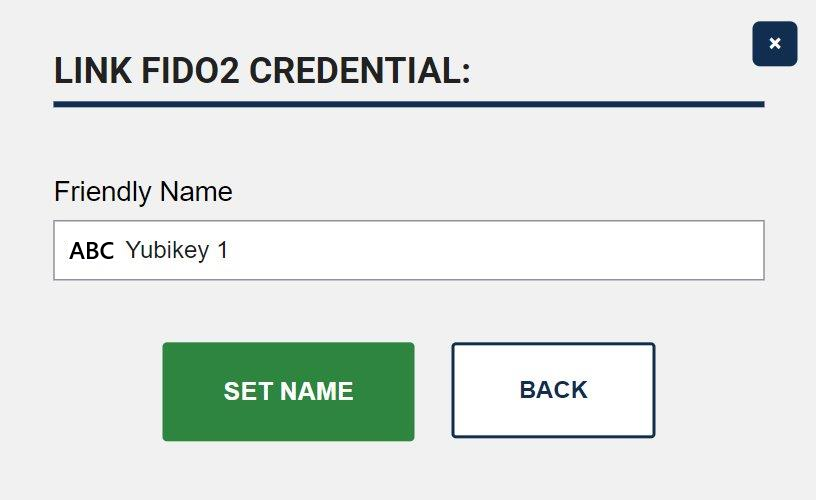
A dialog box will be displayed requesting that you create a friendly name for the FIDO security key. Enter the name that will be used to reference this security key in the FedHub system, then click “Set Name.”
-
A dialog box will be displayed requesting that you create or enter PIN value for the FIDO security key. Type in PIN, then click "OK" button.
-
Enable your FIPS 140-2 compliant FIDO security key to be used by FedHub by touching the security key or tapping an NFC security key against your device.
NOTE: If you are having trouble presenting your FIDO security key, please contact your IT helpdesk.
-
Upon successful linking, you will be redirected to your My Profile page.
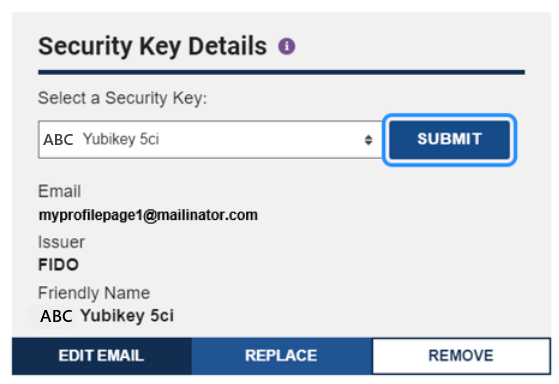
Your FIDO security key friendly name is visible in the "Security Key Details" section of the My Profile page. To view the details, click the "Submit" button next to your friendly name in the "Security Key Details" section.