How to Link a PIV or CAC to an Existing FedHub Account
This job aid assists users on how to link their PIV or CAC credentials, or additional credentials such as ALT cards, PIV-derived credentials to their FedHub account.
For additional details, refer to the job aids on how to replace a PIV or CAC or creating an FedHub account using a PIV or CAC.
NOTE: If you are accessing FedHub on a mobile device, you will not be able to perform PIV/CAC linking.
-
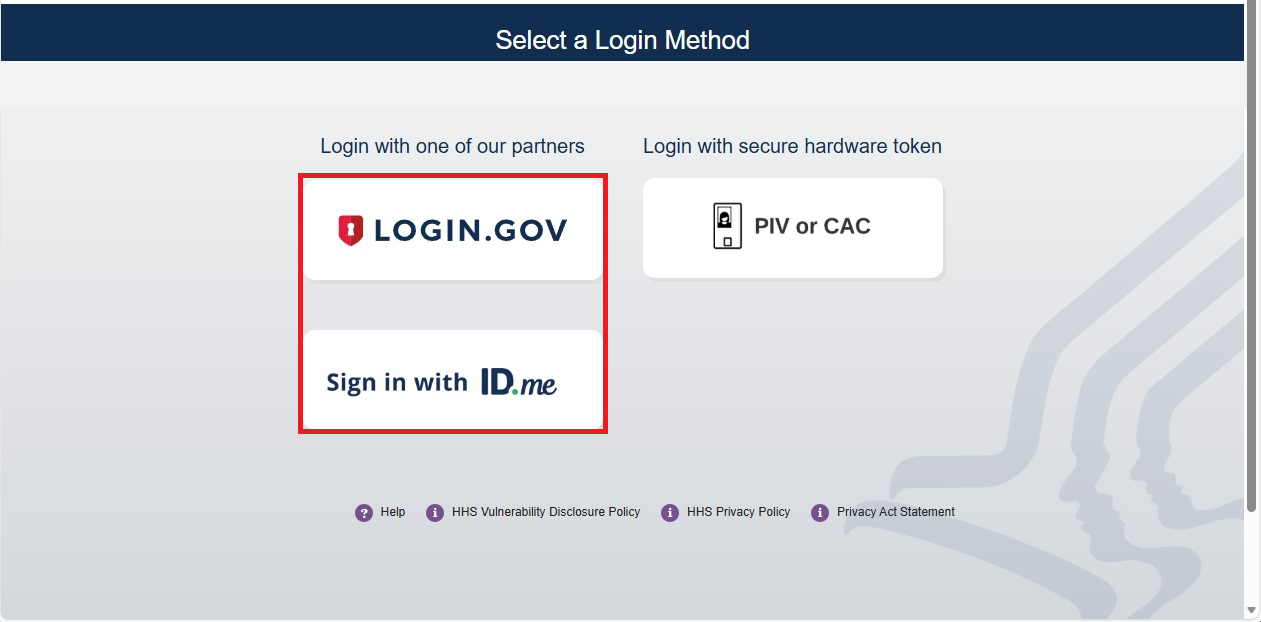
Log into FedHub (https://fedhub.hhs.gov) using your CSP credentials. For quick and easy access to your applications, add this page to your browser favorites and create a desktop shortcut.
-
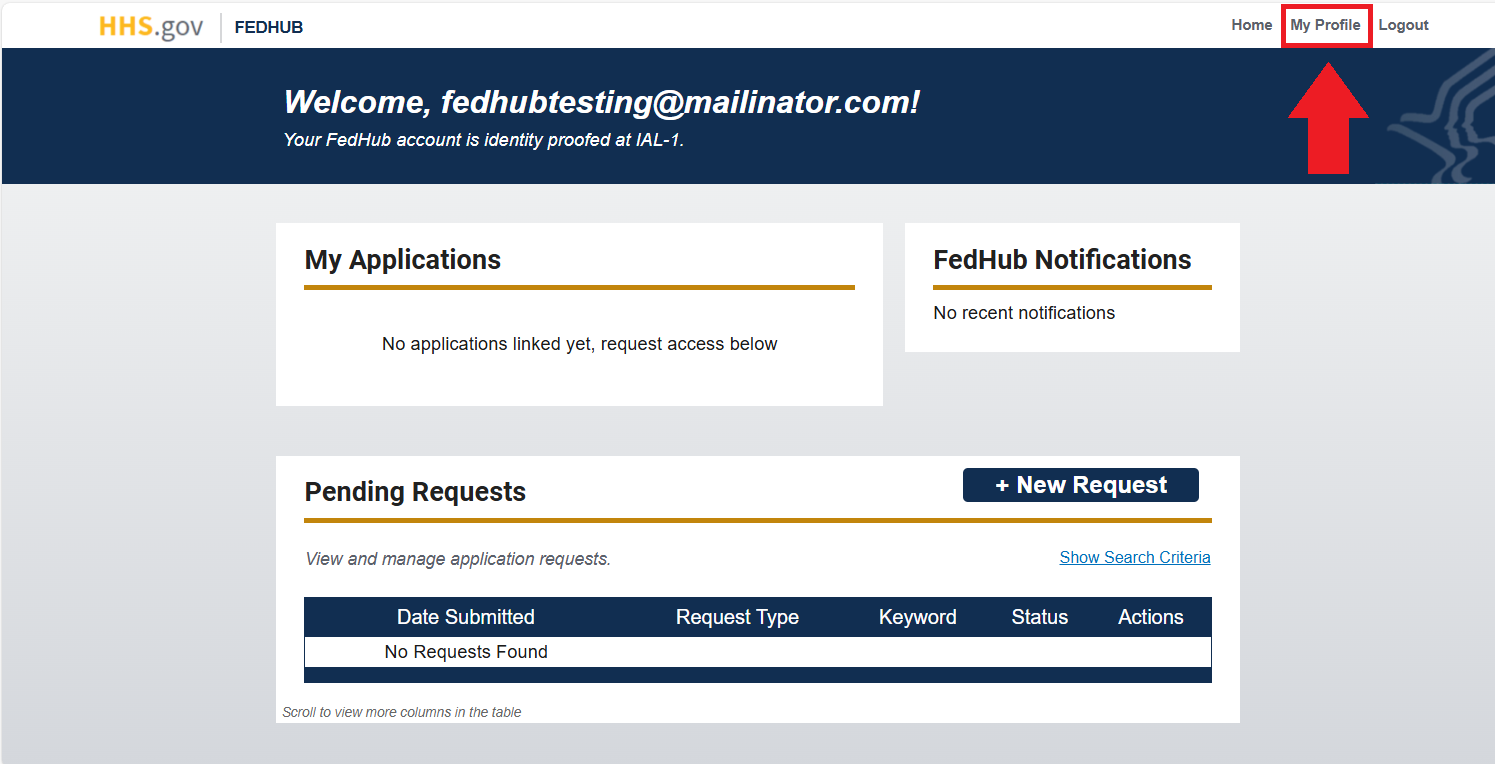
From your dashboard, select the "My Profile" link (located in the top-right corner).
-
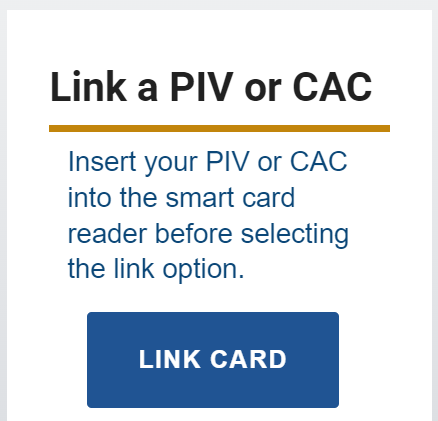
Insert your PIV or CAC into a smart card reader. Then, click the "Link Card" button in the section (right side) labeled "Link a PIV or CAC."
-
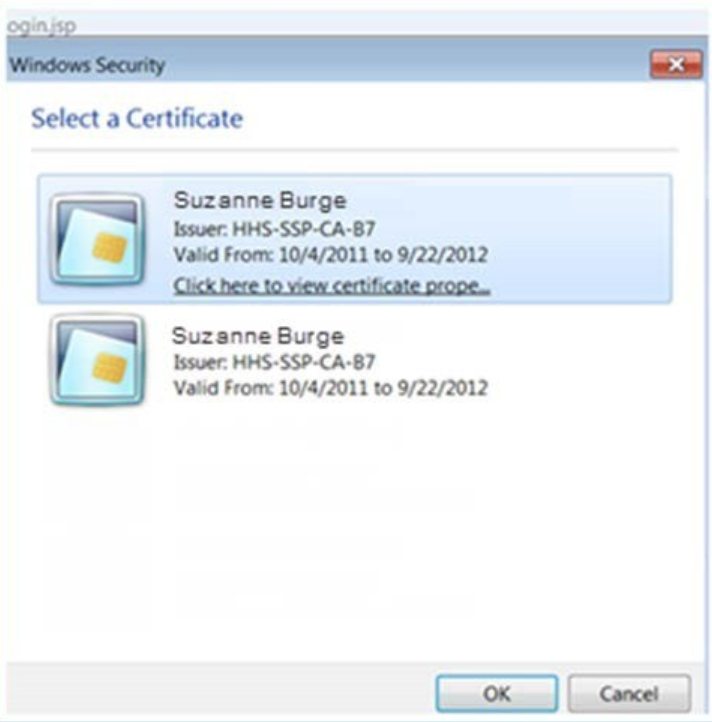
Select your certificate from the "Select a Certificate" pop-up window and click the "OK" button.
NOTE: If you are having trouble identifying the correct certificate from the list presented to you in the pop-up window, please contact your local IT helpdesk.
-
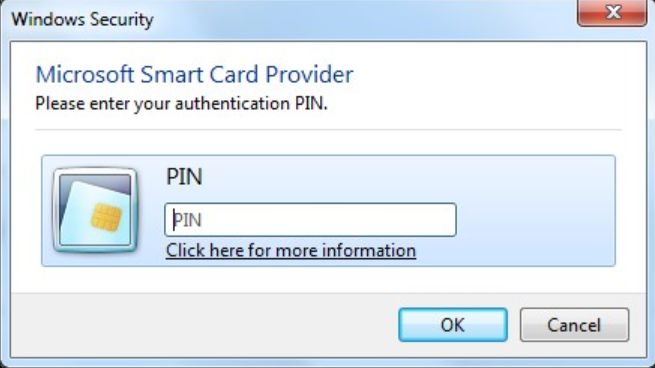
Enter your PIN in the PIN prompt pop-up window and click the "OK" button.
-
Upon successful linking, you will be redirected to your dashboard.
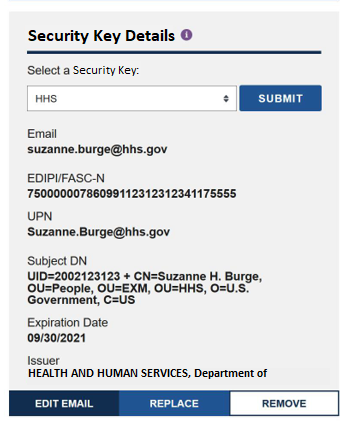
Your card information is visible in the "Security Key Details" section of the My Profile page. To view the details, click the "Submit" button next to your security key in the "Security Key Details" section.
NOTE: Depending on the type of security key, the details displayed might be slightly different.