How to View and Remove Affiliated Organization Users
This job aid assists users designated as an Organization Administrator to manage (view/remove) users affiliated with their organization(s).
If you are an Application Owner trying to view or remove a user’s application access, refer to the "How to View and Remove User Application Access" job aid.
NOTE: If you are accessing FedHub on a mobile device, some screens may vary in appearance.
-
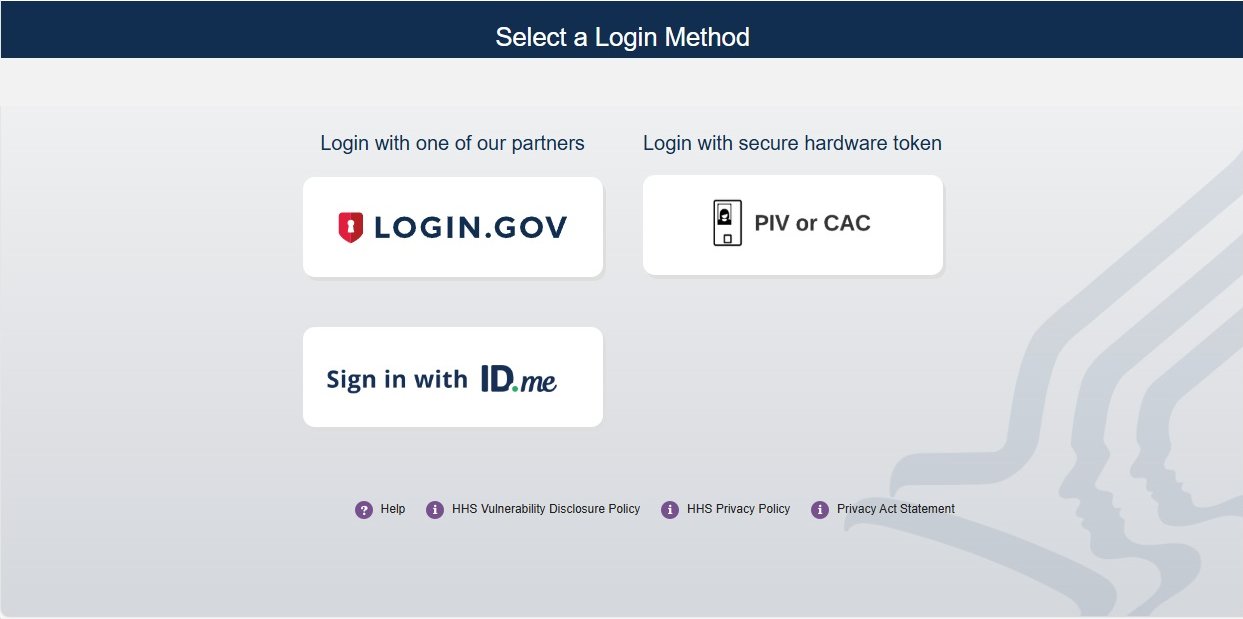
Log into FedHub (https://fedhub.hhs.gov) using one of the methods presented on the login page. For quick and easy access to your applications, add this page to your browser favorites or create a desktop shortcut.
-
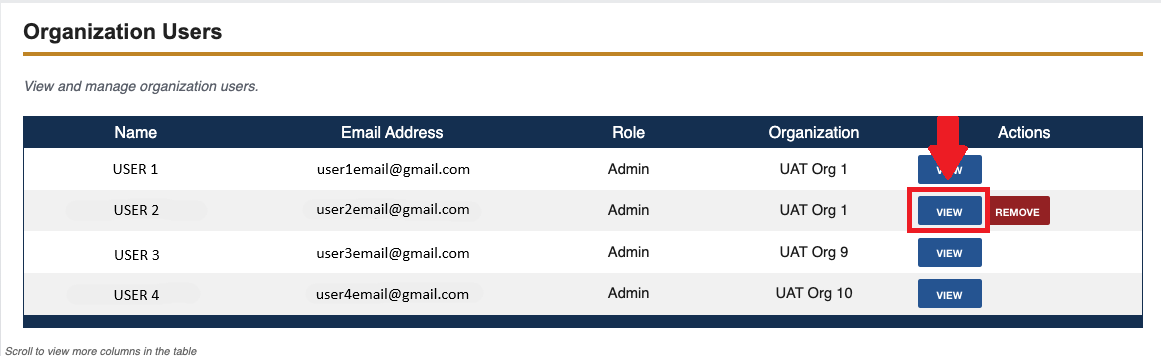
To see additional information for a user, click the "View" button in the Actions column for the desired user in the "Organization Users" table.
-
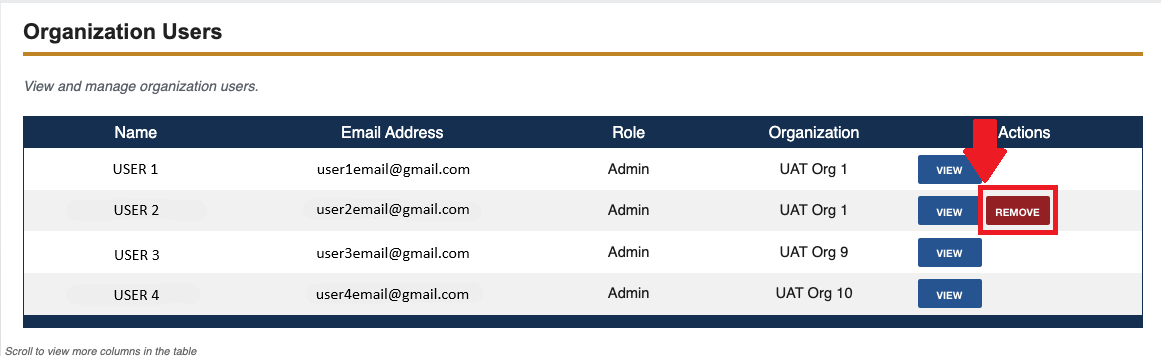
To remove a user from the organization, click the "Remove" button in the Actions column for the desired user.
NOTE: Removing a user from the organization will automatically revoke the user’s access to any application(s) associated with the organization.
-
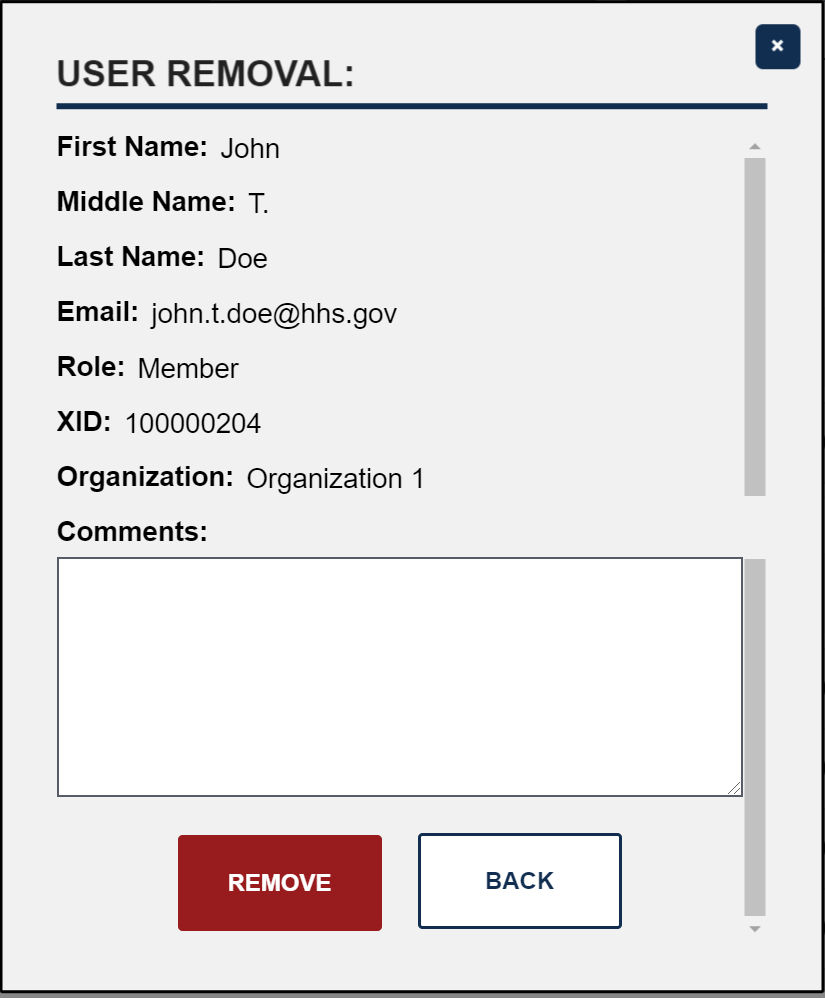
A pop-up window is displayed with a detailed list of the user’s information. To confirm removal of the user from the organization, enter a reason for removal in the "Comments" field and then click the "Remove" button.
-
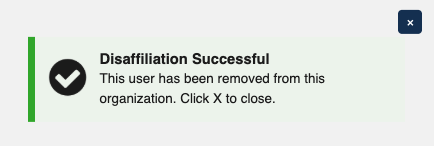
A confirmation pop-up is displayed to affirm that the user has been successfully removed from the organization. The user’s information will no longer appear in the "Organization Users" table.